
Gaining access to CKCC Meetup site.
Problems with MeetUp notifications. See here
Desktop browser session:
You must join MeetUp.
Go to: https://www.meetup.com/
Join Meetup

Click on the Join Meetup button.
- You will need to sign up using an existing email account.
If you use google or apple , it will handle the sign up for you.
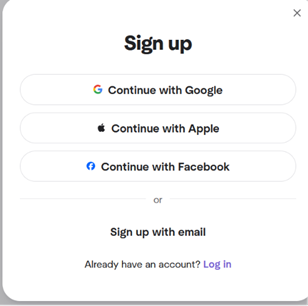
- In this case I will be using the Sign up with email.
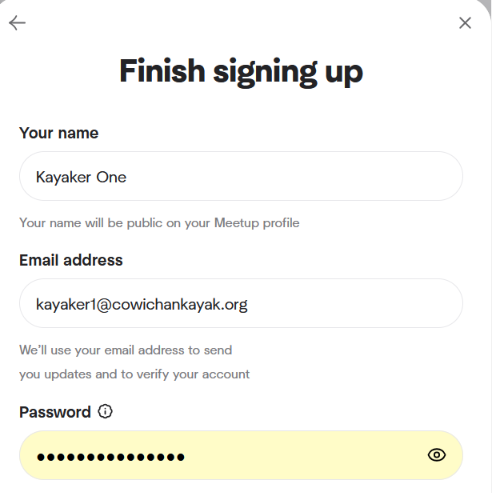
Enter a distinct user name (not just your first name) but something unique.
Enter the email address where you want to receive Meetup notifications.
Assign a new password (just for meetup)
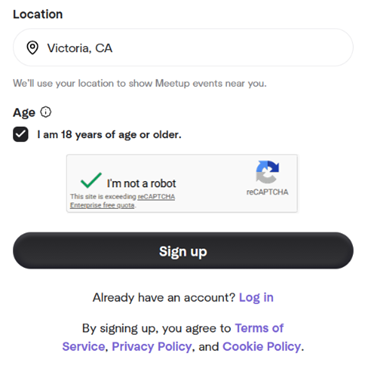
- Finish the age verification and capatcha.
- Check the email account that you signed up with. There should be a verification email.
Click on Verify account
You will get bounced to a new page (assuming that you were reading your email in a browser).
- And now for the Meetup questionnaire.
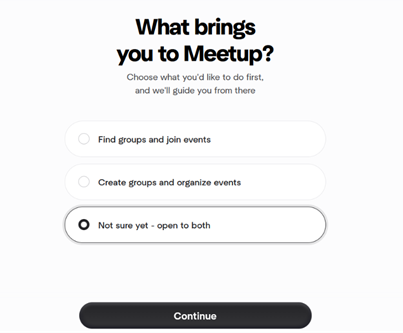
Select something and click continue.
- And more specific questions. Feel free to enter whatever you want.
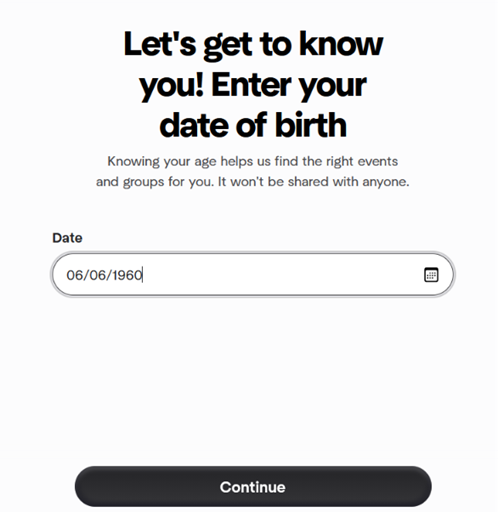
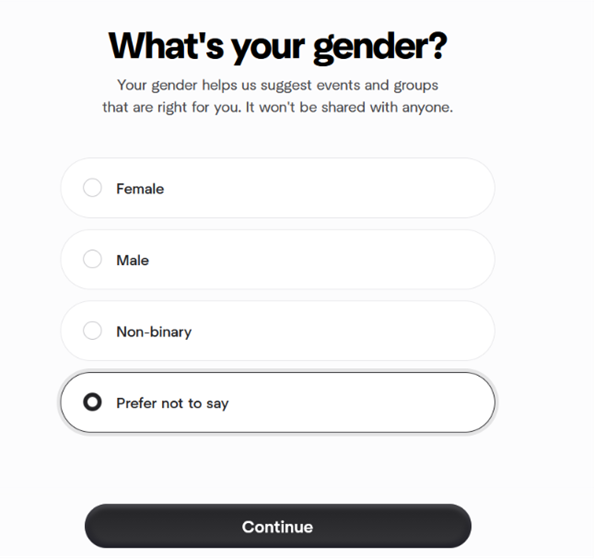
- Interest areas.
- Meetup will ask for your gender.
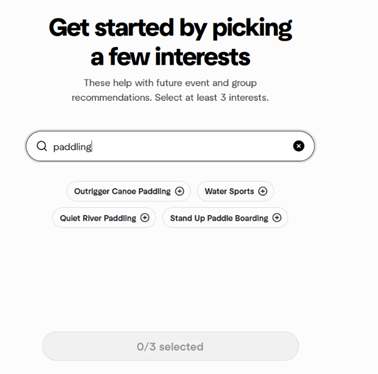
Meetup will ask about your interests. Unfortunately, kayaking is not on the list.
- Because Meetup won’t continue without filling something out, just select 3 and move on.
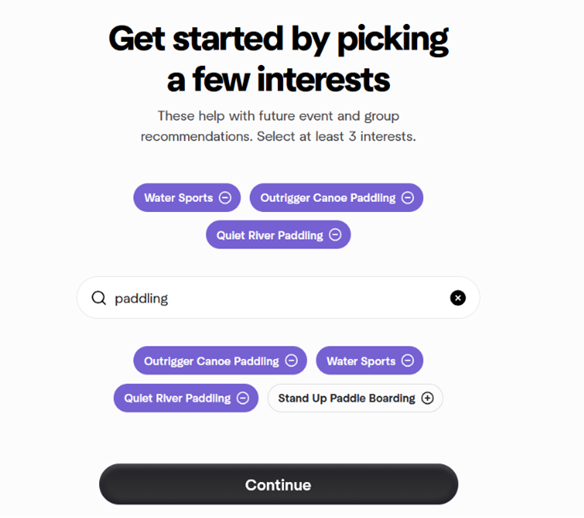
But you have to select 3 or you can’t continue……
Now you are into a new section that really doesn’t apply. Meetup+.
This is NOT meetup.
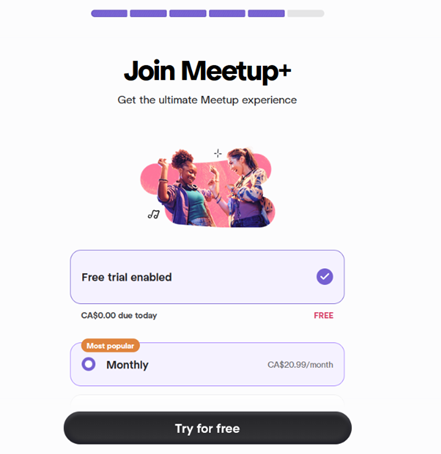
And the first prompt for money. Select the free trial.
DO NOT PAY MONEY. The club has an account. Well, actually, Pat has an account.
- And wam bam, you need to give them your credit card.
Wait a minute. NO you don’t.
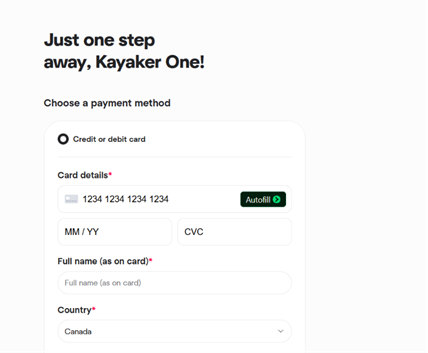
- But wait. Hope is in site. Close the page and log back in to meetup.
- After going to the Meetup login page and logging in you should then be able to search for the Cowichan Kayak Club. Be sure to search for GROUPS.
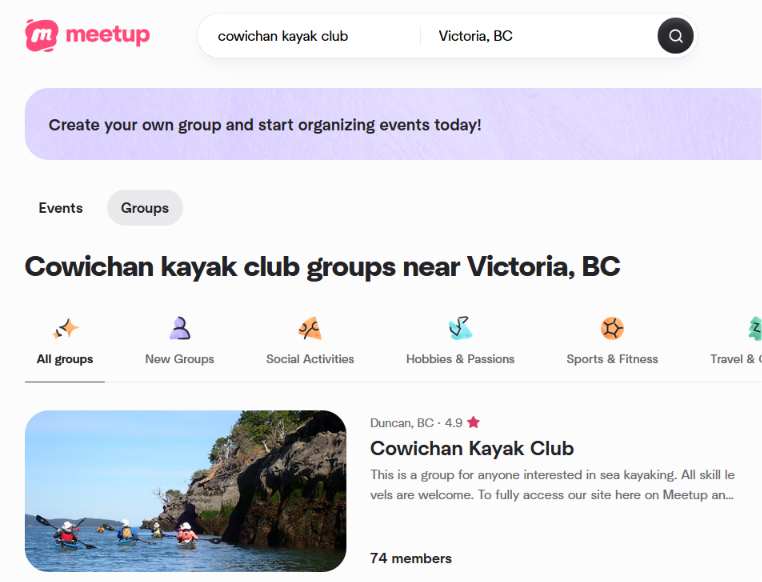
- Click on the Kayak Club.
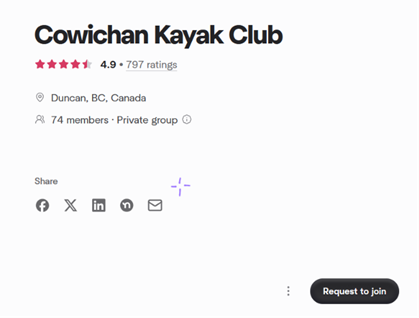
You should now see a Request to join button.
Click that and a message will be sent to the organizers.
- You will receive an email notification of your request.
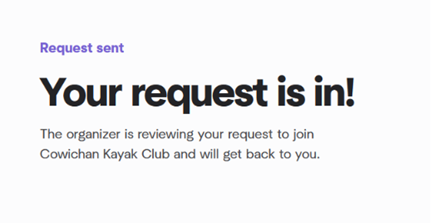
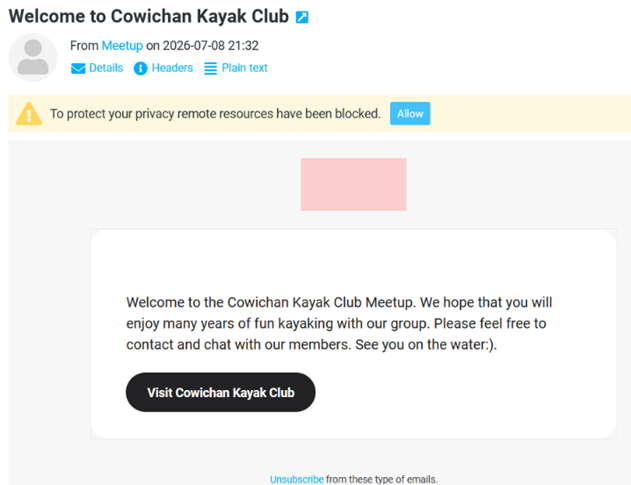
- Once the organizers have processed your request, and you of course have signed up and paid your fees. You will receive a Welcome to the Kayak Club email.
- When you sign back in to Meetup, you will be confronted with this page:
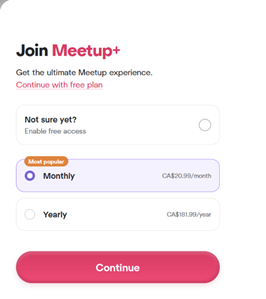
Click on continue with free plan.
Always continue with the free plan.
- You should now be able to sign up for club events.
MeetUp Notifications:
MeetUp not sending notifications
If you are having problems receiving meetup notifications, please try the following;
If you use the “app” on any device, go to that device:
– log out
– delete (as in get rid of) the app
– if you use more that one device, delete ALL MeetUp apps
Using a desktop device (laptop)
– login to your meetup account (you should only have one meetup account)
– click your profile picture
– click settings
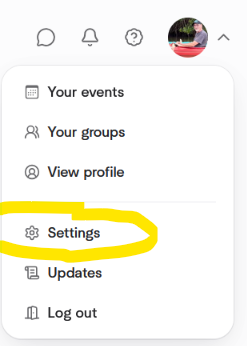
Click edit email updates
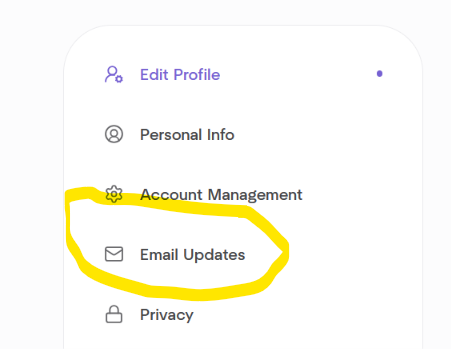
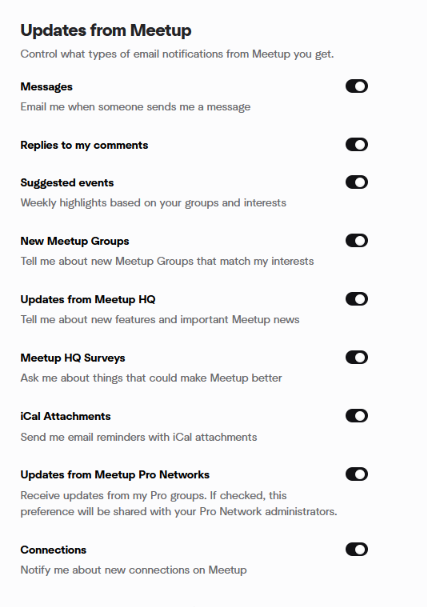
Make sure that updates from meetup are all ON
Check Updates from your group
– under CKCC click EDIT
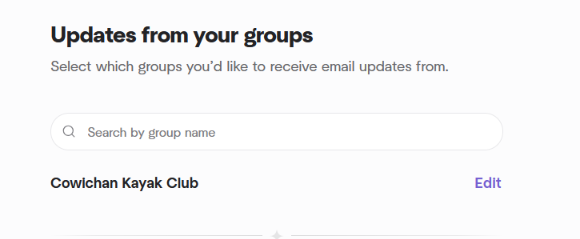
Make sure that ALL notifications are turned on

Exit Settings and log out. Hopefully that will work.